TECH
Vol.32

Designer
S.N.
Getting Started with GitHub Desktop
GitHub has been updated with a new version, hasn’t it?
In this article, we’ll take a closer look at what has changed and explore the new features in detail.
INDEX
The App Name Has Changed!
GitHub Desktop
Optimized for “GitHub Flow”
Let’s Try Using It in Practice
Conclusion


The App Name Has Changed!
GitHub is widely used for project version control, and just recently its desktop application received an update.
After updating as usual, you may have noticed that the application’s name has changed.
Could this mean there have been major changes significant enough to warrant a new name?


GitHub Desktop
Change #1: Application Name
The application name has been changed.
If you are using it on a Mac environment, the identification in the Dock will be lost, so you will need to re-register the application in the Applications Dock.
Change #2: Integration of Mac and Windows Versions
Until now, “GitHub for Mac” and “GitHub for Windows” were treated as separate applications depending on the platform.
With this update, they have now been completely unified.
It also appears that the official website has been integrated as well.
Official GitHub Desktop Page
Change #3: GUI Updates
Changes (commits) are now displayed visually along a horizontal timeline.
By clicking on a commit, you can view the change history from that point in time.
The biggest change is that commits are now constantly displayed along a horizontal time axis.
What significance does this change bring to the workflow?
Optimized for “GitHub Flow”
“GitHub Flow” is, broadly speaking, a development model that separates work between “developers working in branch environments (derived branches)” and a “leader (master) who reviews, manages, and merges branches into the main project.”
In this update, commits are visualized along a timeline.
The master development line and the branched lines are displayed visually, making it easy to compare where development continued on the master branch, where branches split off, and when and what changes were made after branching.
Because you can also see when branches were merged back into master, the overall progress of project development can always be tracked visually.
Let’s Try Using It in Practice
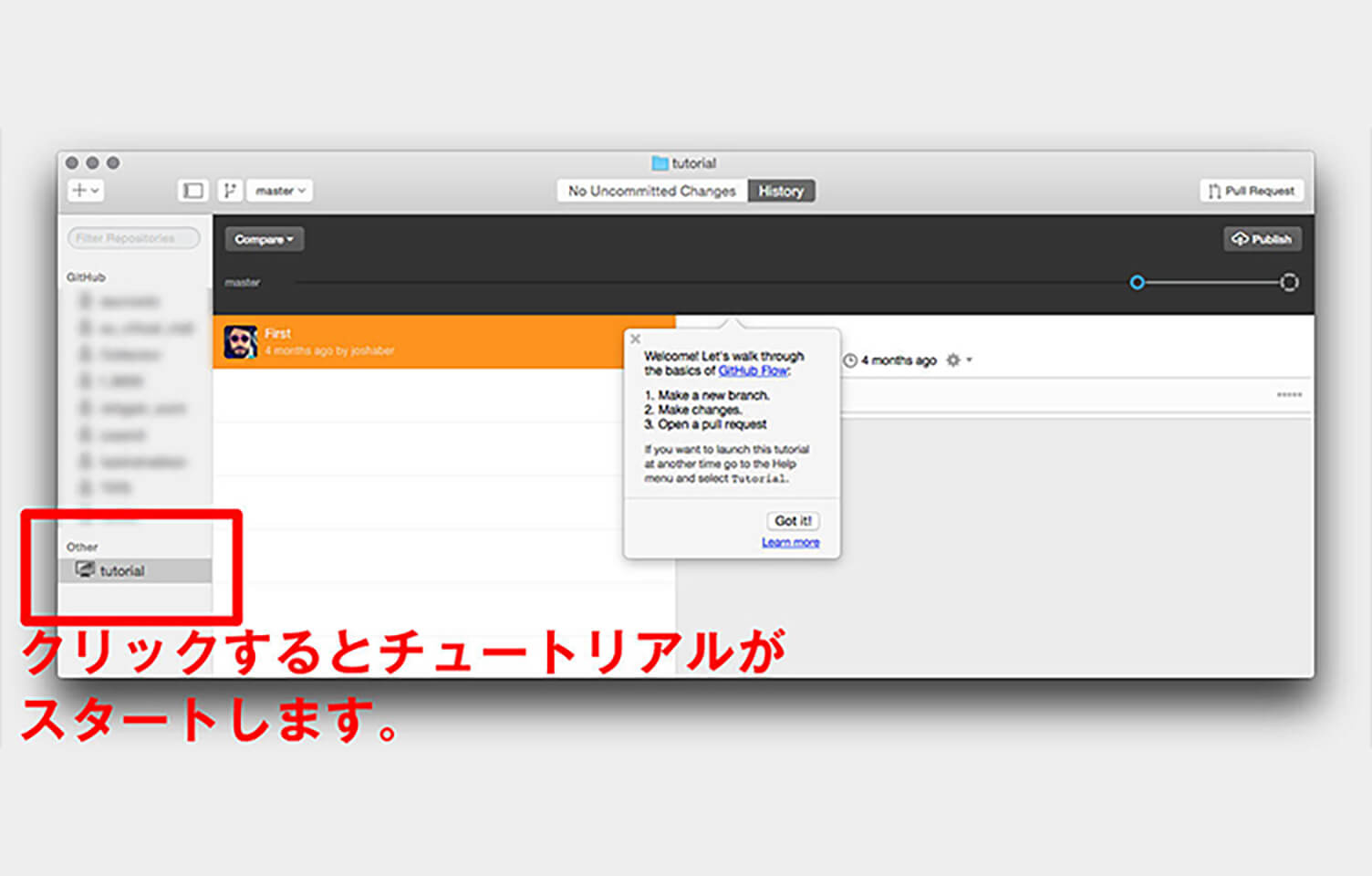
One of the major features of this update is the visualization of commits along a timeline.
Let’s take a look at how this actually works in practice.
The new “GitHub Desktop” includes a simple tutorial, so we’ll use that as we go through the explanation.
1. Create a New Branch
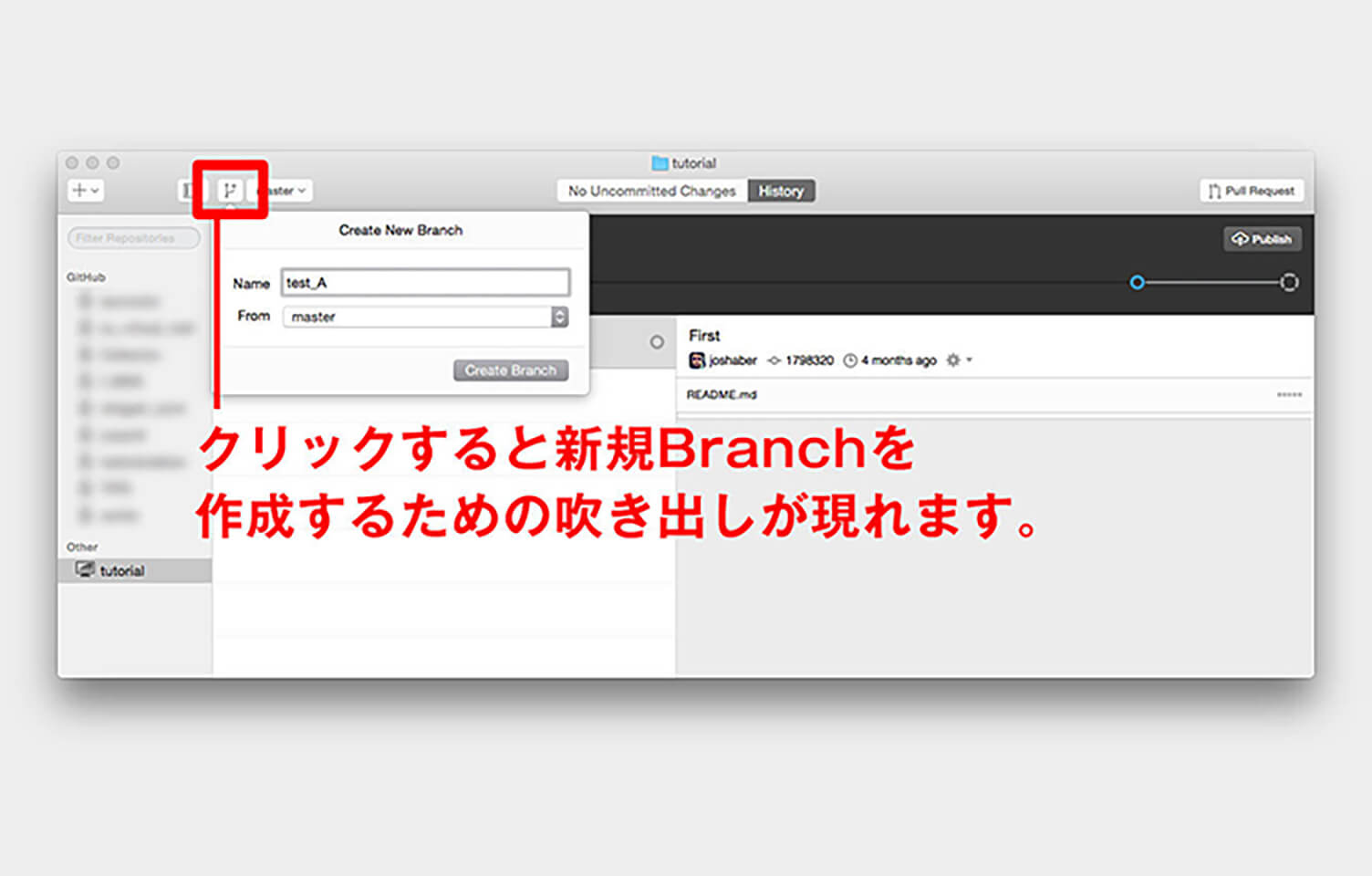
Click the icon inside the red box in the upper-left corner, and a popup labeled “Create New Branch” will appear for creating a new branch.
For the “Name” field, it is helpful to enter something easy to identify, such as a team name, development task, or the name of the person working on it.
Here, we will use “test_A.”
For “From,” select the branch that will serve as the base for the new branch.
Since only “master” exists at the beginning, select master.
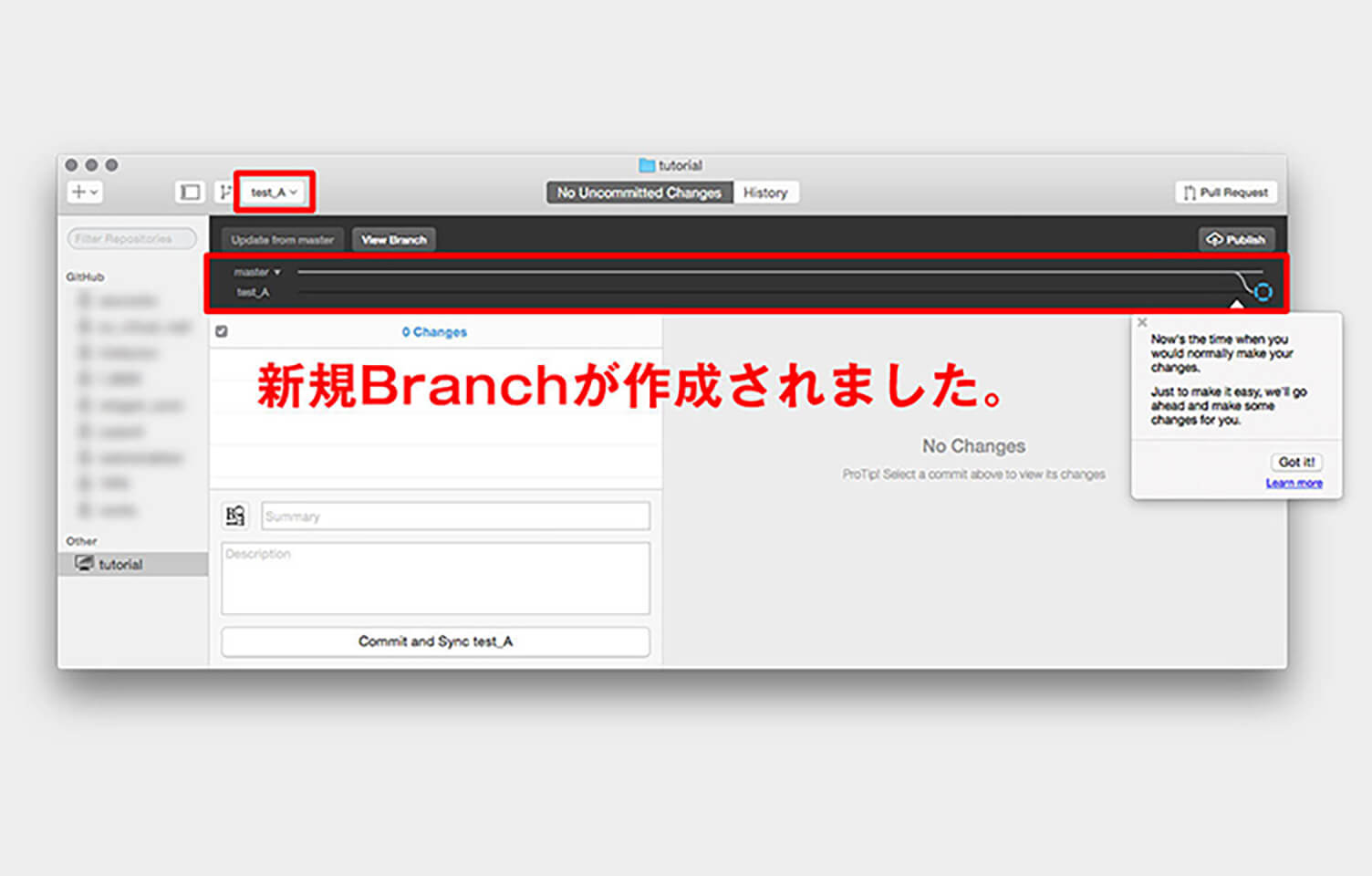
2.Commit
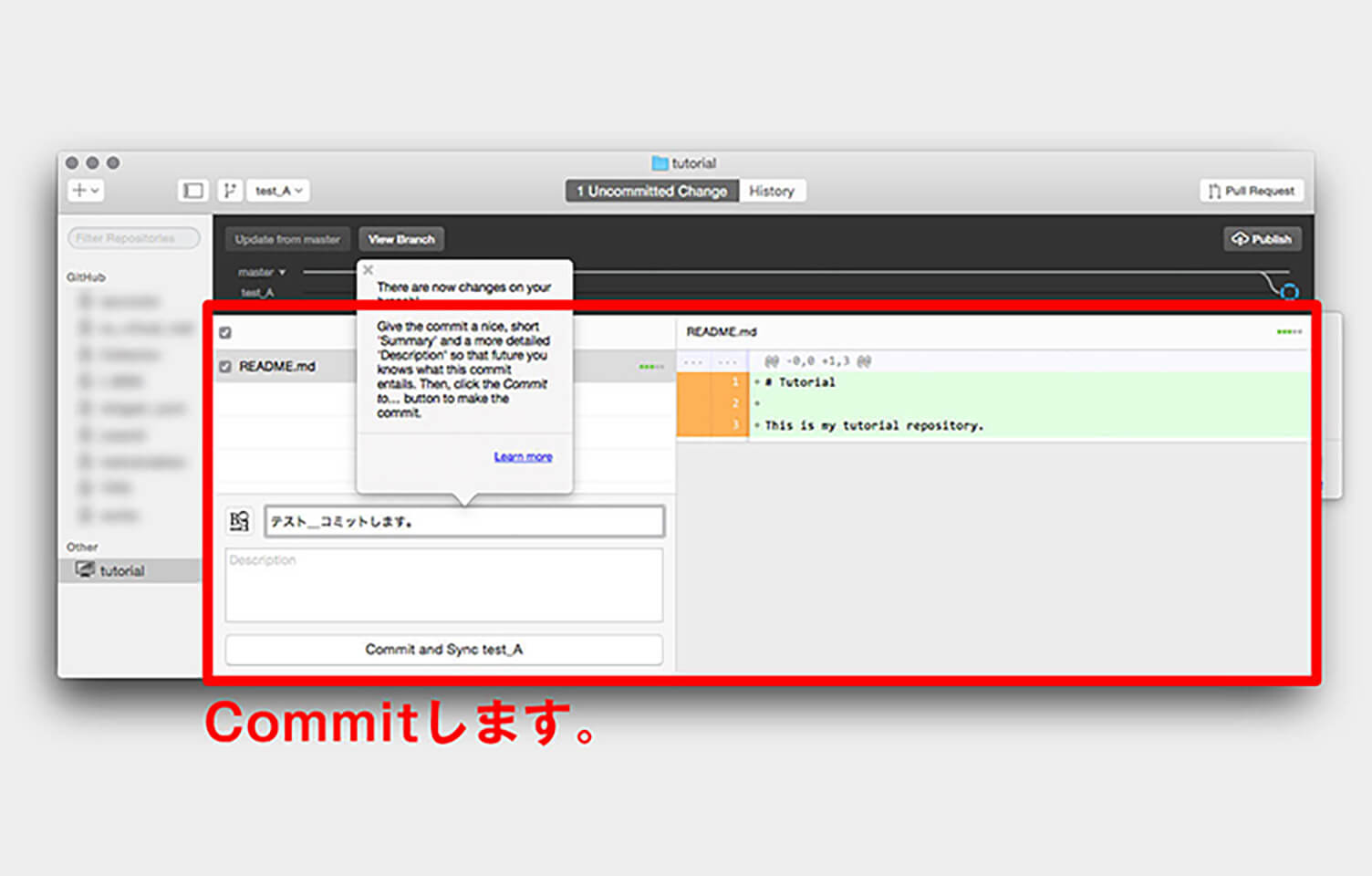
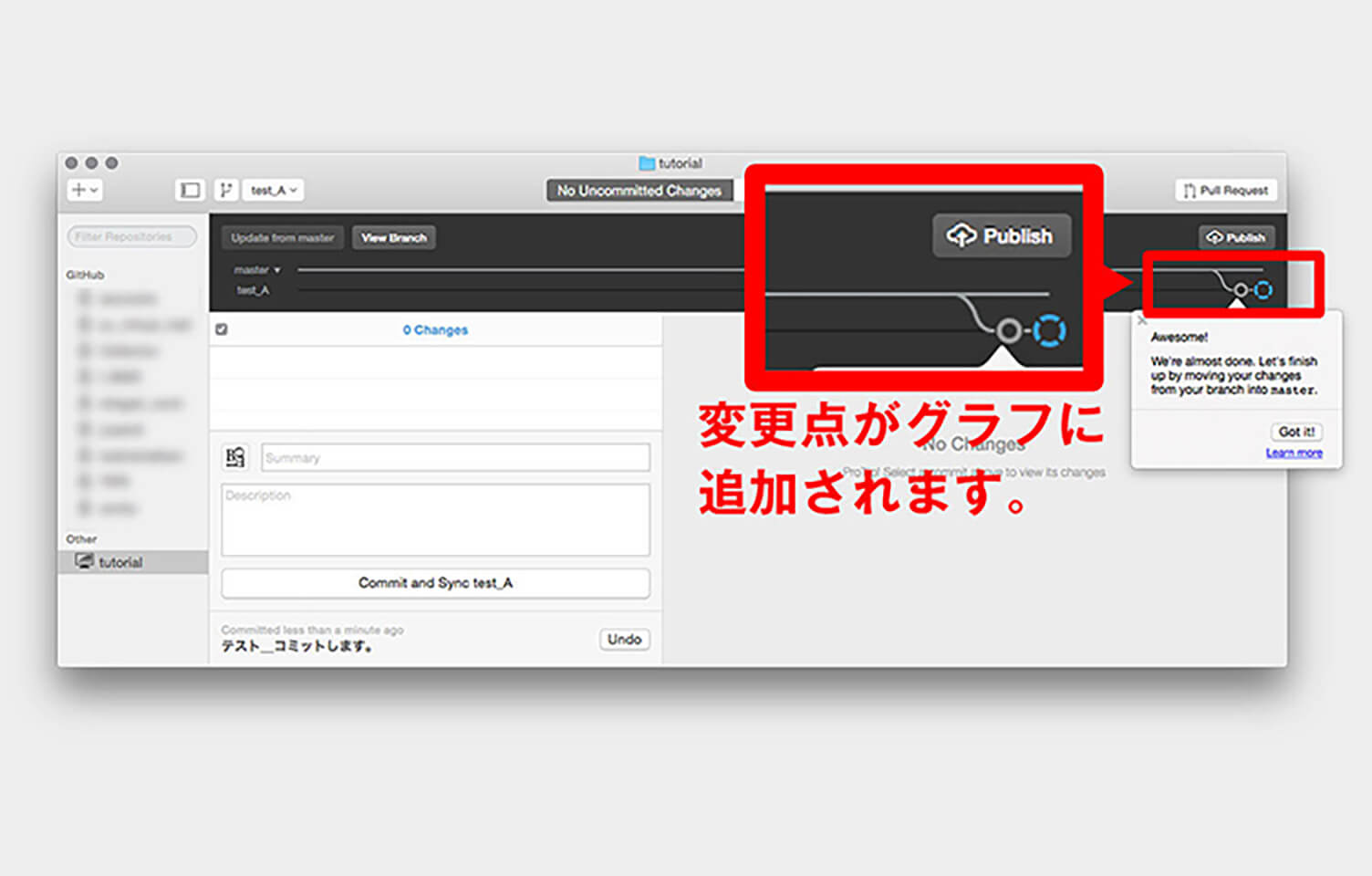
In the tutorial, files are automatically added, so the next step is to make a “Commit.”
Once you commit, the changes (commits) are added to the branched graph displayed at the top.
3. Prepare to Merge into master
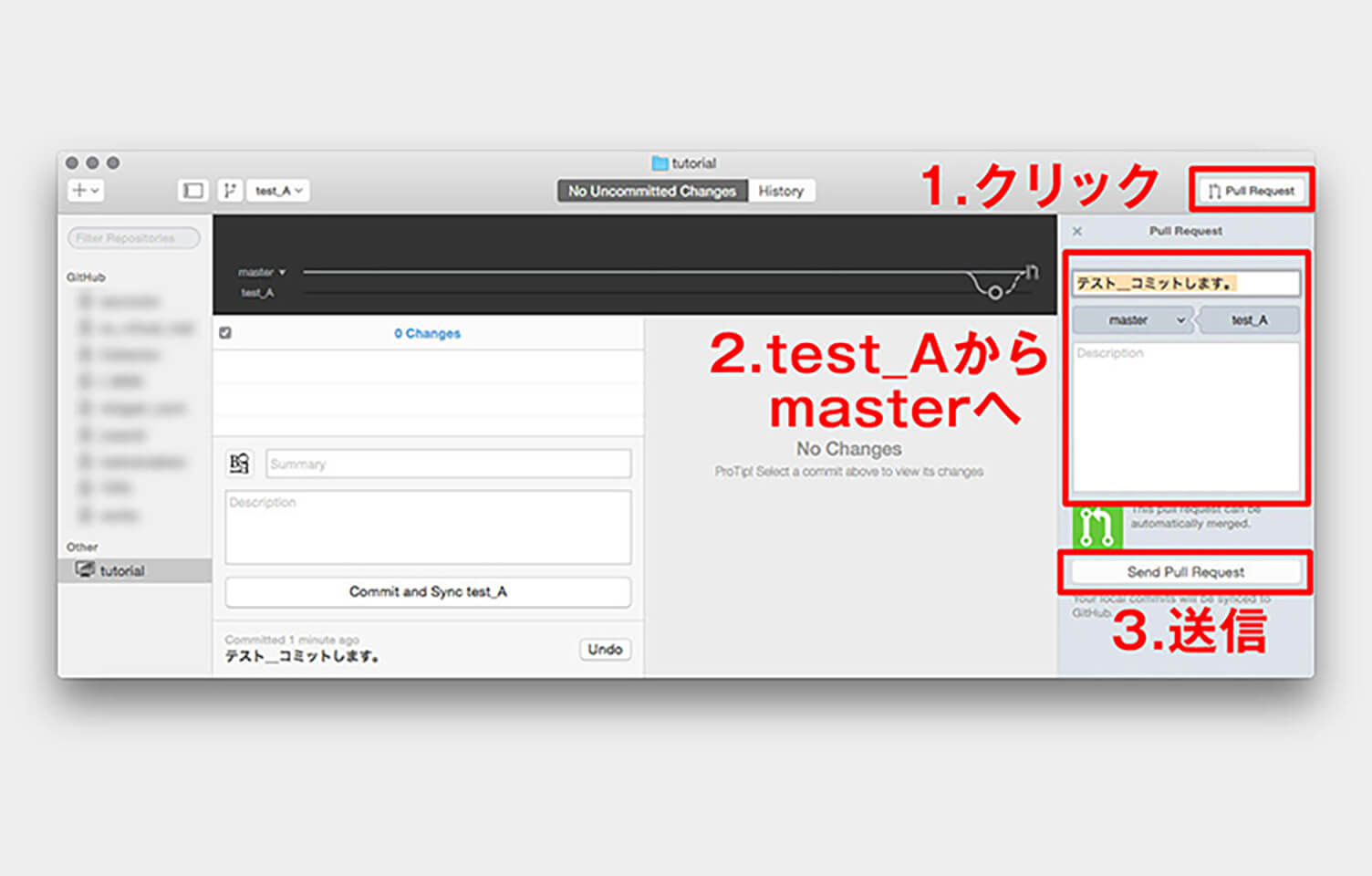
To apply the commits made in the branch to master, you first need to create a “Pull Request.”
1. Click “Pull Request” in the upper-right corner to open the pull request screen.
2. Select the merge direction from test_A to master, then enter a title and other details.
3. Click “Send Pull Request” to submit it.
4. Merge into master
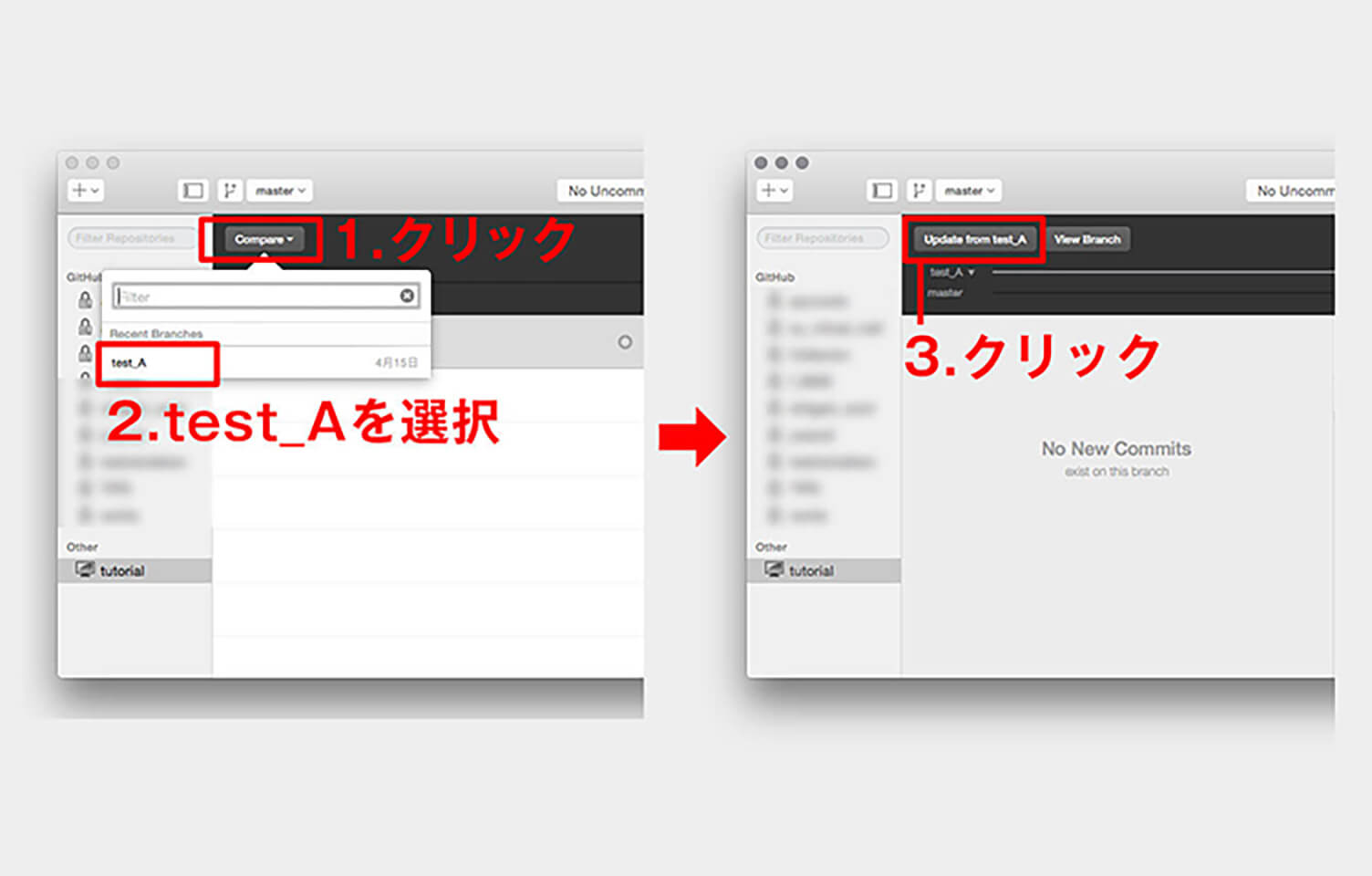
Next, return to the master branch and apply the pull request created earlier.
1. Click “Compare” in the upper-left corner and select test_A.
2. Once selected, “Update from test_A” will appear in the Compare section, so click it.
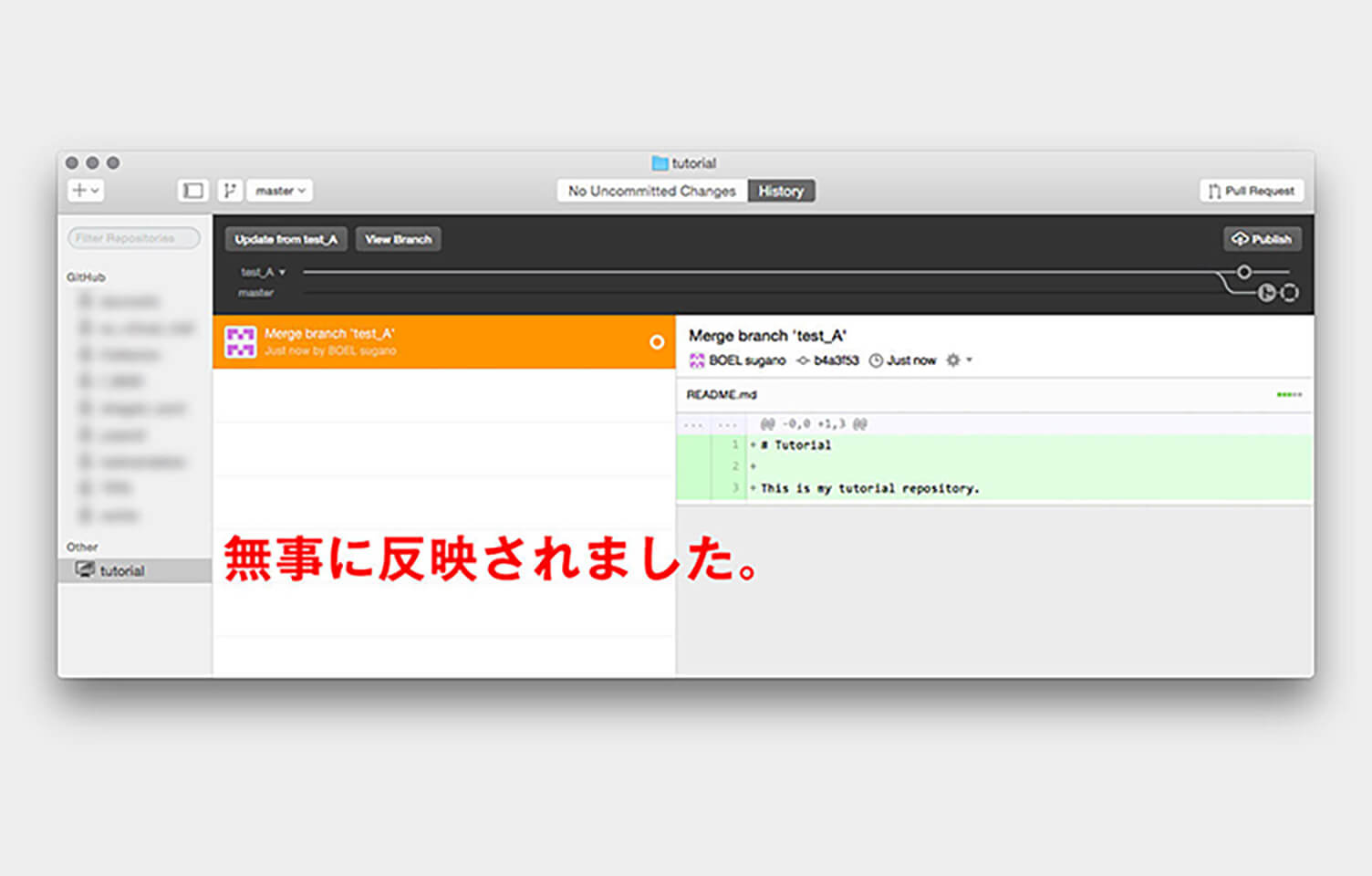
3. The changes made in test_A will then be merged into master.
Conclusion
With this update, commits are now visualized, making branches much easier to understand in “GitHub Desktop.”
Originally, the application was developed so that even creators such as designers—who may not be comfortable using command-line tools—could easily work with GitHub.
With this latest update, it has evolved into a form that is even better suited to modern development workflows.
Make active use of it and improve the efficiency of your projects and daily work.



RECENT POSTS

Vol.203
What Is Design Management

Vol.202
Why Hiring No Longer Works— Redesigning Organizations and Decisions for an Uncertain Age

Vol.201
How to Choose a Branding Agency: 5 Criteria to Avoid Failure

Vol.200
Design Management: A Practical Guide for SMEs and Startups to Drive Real Results

Vol.199
How to Rebuild Brand Competitiveness: A Practical Guide to Brand Management for SMEs

Vol.198
From parent–child bonds to community: The future of education that nurtures diversity and designs relationships


