ILLUST

Vol.29

author

Illustrator

M.N.

Create GIF Animations with Photoshop

#illustration#Animation#Adobe#Photoshop

Did you know that with just Photoshop, you can create short animations in a relatively simple way?
In this article, we’ll introduce the basic workflow for creating GIF animations in Photoshop, along with some useful features.
*The version of Photoshop used in this guide is CS5.

stuffstuff

Basic Workflow

How to Create Frames

First, prepare multiple different images in Photoshop.
You can organize them into groups if you like, but for now, it’s easiest to create one layer for each movement or animation step.

How to Create Frames

Next, open the Animation panel from the “Window” menu.
*In Photoshop CC, select “Timeline” from the “Window” menu.
Then choose “Create Frame Animation.”
First, make sure it is set to “Frame Animation.”
Since the images appear directly in the panel, it’s very easy to understand visually.

How to Create Frames

In the Animation panel, create a new frame for each layer.
At this stage, add a new frame one by one as you work through the layers.
By creating frames, you can display the layers sequentially to produce animation.
Click “Duplicate Selected Frames” in the panel to create a new frame.

How to Create Frames

How to Preview the Animation

Once you have finished creating the frames, check how the animation actually moves.
Click “Play Animation” at the bottom of the Animation panel.
If you want the animation to repeat continuously, change the playback setting to “Forever.”

How to Preview the Animation

How to Export the GIF Animation

To keep the file size from becoming too large, save the animation using “Save for Web & Devices.”
When exporting a GIF animation, make sure to check the loop options.
If you want the animation to repeat continuously, change the setting to “Forever” before saving.

How to Export the Animation

Tips for Improving Your Workflow Efficiency

How to Create Frames from Layers All at Once
When you have many layers, creating frames one by one can become quite a tedious task.
In such cases, Photoshop provides a convenient feature for generating frames automatically in bulk.
From the menu in the upper-right corner of the Animation panel, select “Make Frames From Layers.”
*In Adobe CC, use “Create Frames From Layers” to generate all frames at once.

Things to Watch Out for When Adding Layers Midway Through the Process

There may be times when you want to add a new layer while you are already in the middle of creating frames.
A common issue in this situation is that the newly added image appears across all frames.
In many cases, this happens because the option “New Layers Visible in All Frames” in the upper-right menu is checked, so make sure to disable it.
Also, be careful to create the frame first before adding a new layer.

Things to Watch Out for When Adding Layers Midway Through the Process

Advanced Technique: Automatically Add Motion Using Tweening

For those who find it difficult to prepare images frame by frame, Photoshop actually includes a feature that can automatically generate motion for you.
This feature is called “Tween Animation Frames,” located at the bottom of the menu.
*In Adobe CC, it is simply called “Tween.”
This function automatically fills in the frames between two existing frames.
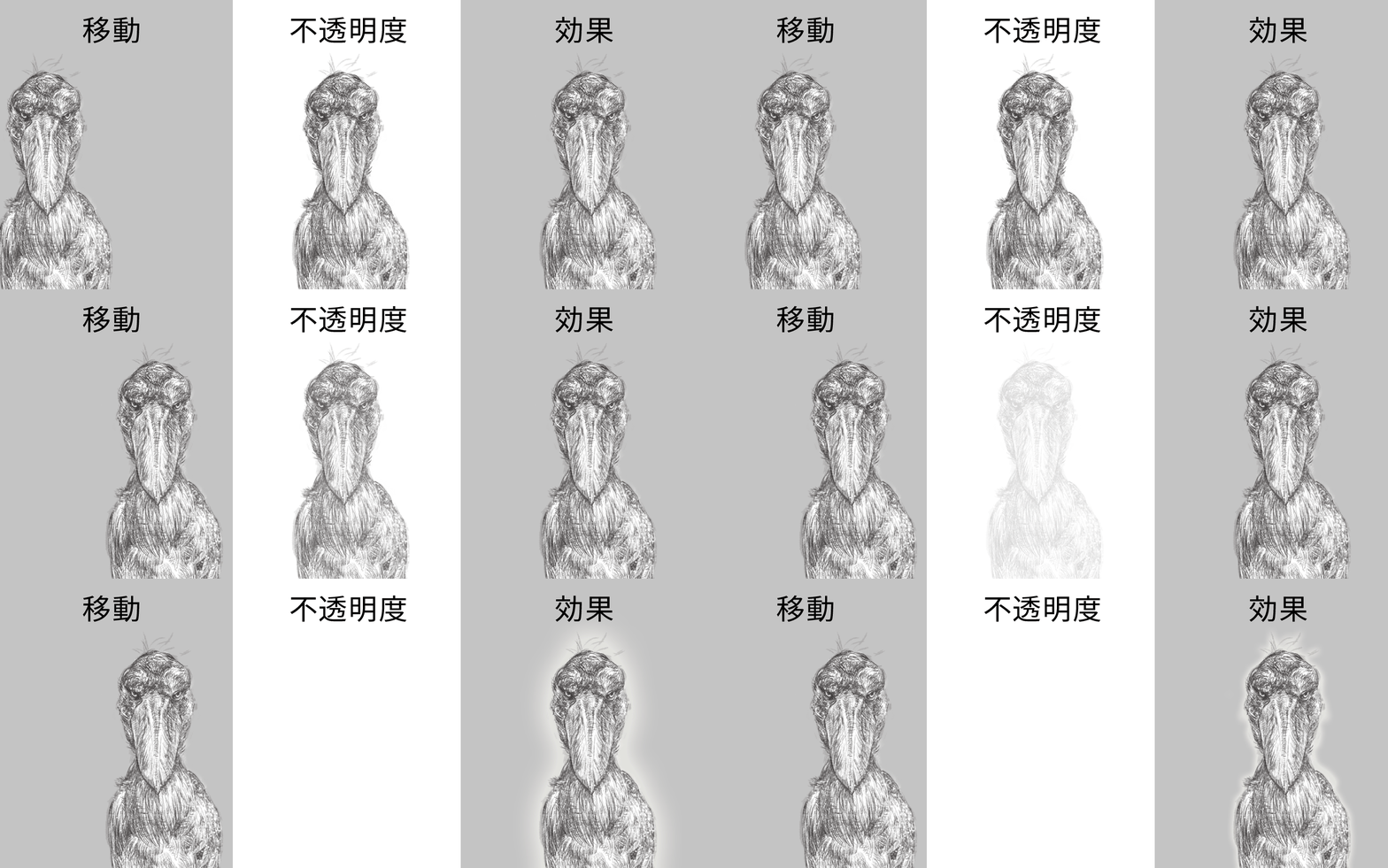
For example, if you want an object to move from right to left, you only need to prepare the starting and ending positions, and Photoshop will automatically create the in-between motion.

There are three types of Tween effects available:
Position: Creates movement between different starting and ending positions.
Opacity: Gradually changes opacity between the starting and ending frames.
Effects: Interpolates layer effects applied to the layer.
*This can be a little difficult to understand, so it is best demonstrated through animated GIF examples.

There are three types of Tween effects.

Points to Keep in Mind

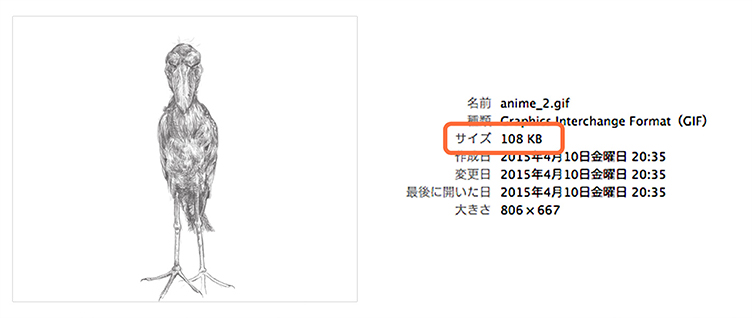
The main things to watch out for are the number of frames and the file size.
If you create a GIF animation using hundreds of images, the file may exceed the upload size limits for websites.
Even if the animation plays smoothly on your own computer, always pay attention to the final file size.

Points to Keep in Mind

Conclusion

What did you think?
Photoshop alone includes plenty of features for creating animations.
Since you can add motion while creating images, the workflow becomes very smooth.

Recently, GIF animations have become usable on platforms such as Twitter, giving them even more opportunities to shine.
Why not try incorporating them as an effective way to share information and express ideas?

PREV
Vol.28Wake Up Refreshed with Better Sl…
NEXT
Vol.30Creating Animations with CSS3 Ke…

MORE FOR YOU