DESIGN

Vol.34

author

Designer

M.N.

How to Create SVG Files

#design#webサイト#ブラウザ#Adobe#Illustrator#SVG

In this article, we’ll introduce how to export SVG files and important points to keep in mind when using them.
In addition to SVG, common image formats used on websites include JPEG and PNG.
However, many people have probably experienced issues such as images becoming blurry when enlarged, or needing to export the same image again for different sizes.

stuffstuff

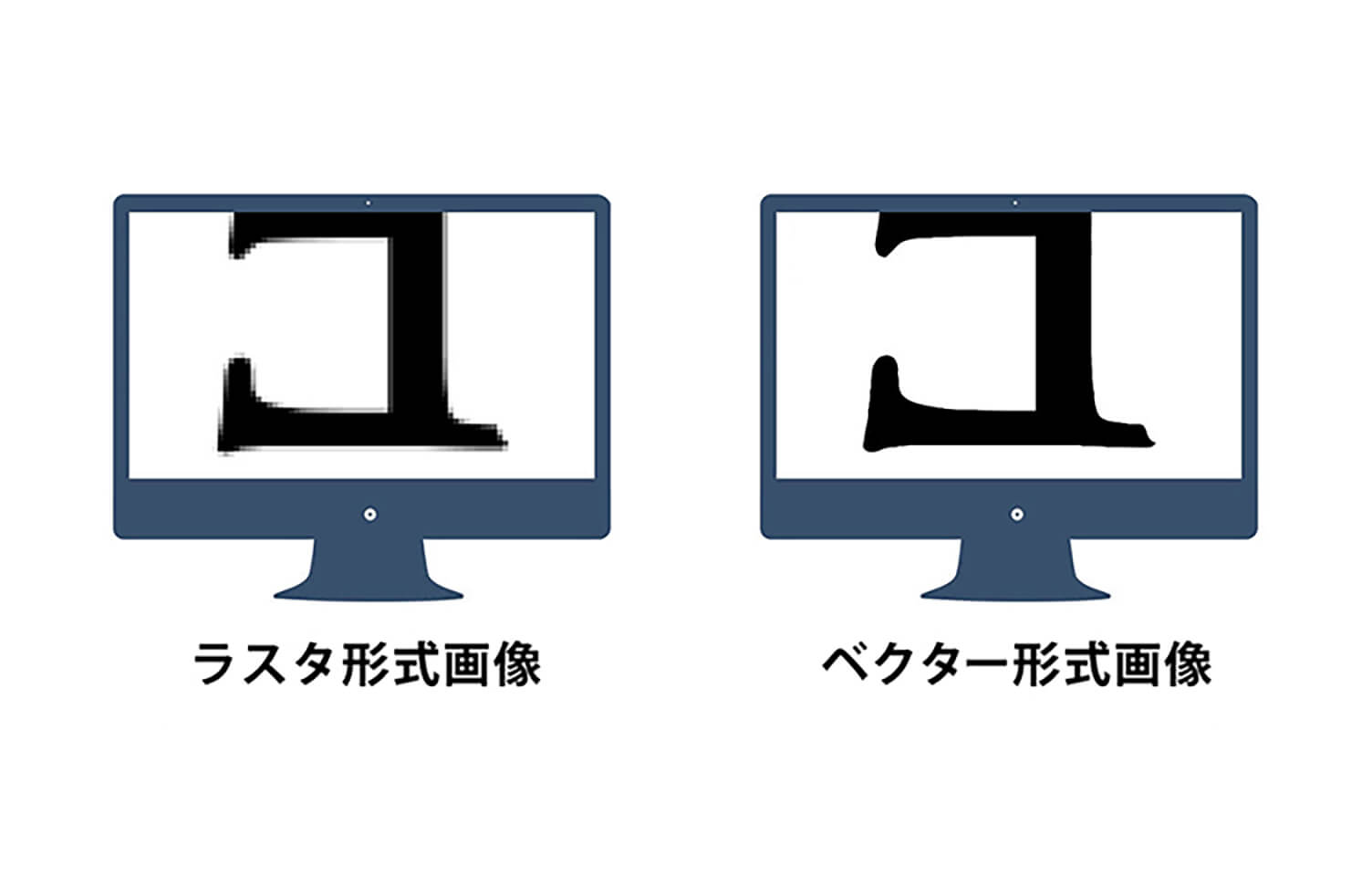
Difference Between Raster Images and Vector Images

Because SVG uses vector data, image quality does not become pixelated even when zoomed in.
This makes it possible to support high-resolution displays such as :contentReference[oaicite:0]{index=0} beautifully with just a single image format.

Difference Between Raster and Vector Images

Since SVG is vector-based, enlarging the image does not reduce its quality.
As a result, a single SVG image can cleanly support high-resolution displays.

• Raster Images
Images made up of collections of colored dots (pixels).
On the web, JPG, PNG, and GIF are the most common raster formats.

• Vector Data
Images composed of path data.
When resized, the image is redrawn according to the new dimensions.
Because of this, vector images do not lose quality or become blurry when enlarged.
On the web, SVG has become the most widely used vector image format.

How to Create SVG Files

SVG files are mainly exported using :contentReference[oaicite:0]{index=0}.
(Although SVG can also be exported from :contentReference[oaicite:1]{index=1}, this guide will explain how to export from Illustrator.)

How to Create SVG Files

1. Convert all data in the layers into outlines.
If text or objects are not outlined, the exported image may appear rough or inconsistent.

2. Export the image using “File” > “Save As.”
Choose SVG (.svg) as the file format and save it.

3. After saving, the SVG options window will appear.
In most cases, the default settings are perfectly fine.

Making Images Responsive

• Responsive Images
Within the SVG options, there is a setting related to making the image responsive.
If your website uses a responsive layout that scales images according to browser size, be sure to enable this option.

You can support responsiveness by deleting the width and height values inside the red box.

You can also adjust responsiveness after exporting the SVG file.
If you want to modify it later, open the SVG in a text editor and remove the width and height values highlighted in the red box.

Optimizing SVG File Size

To prevent your website’s loading speed from slowing down, it’s important to keep SVG file sizes as small as possible.
In addition to using compression tools such as Compressor.io, you can significantly reduce file size by organizing and cleaning up your layers.

• Delete unnecessary paths and layers.
• Ungroup layer groups whenever possible.

Sometimes SVG Images Can Still Look Rough

Even SVG images can sometimes appear rough or blurry.
To avoid this, there are several important points to keep in mind.

• Export images without decimal values in the image size (unit: pixels).
• Apply outlines to your data beforehand.
• Convert all elements you want to include in the SVG into paths.

Even after exporting as SVG, you can still reopen and edit the file in :contentReference[oaicite:0]{index=0}.
If you are unsure why the image quality appears rough, try opening the SVG file again and checking its file properties.

Free Conversion Tools You Can Use Without Illustrator

Here are some convenient web tools that allow you to convert images into SVG format even without using :contentReference[oaicite:0]{index=0}.
Since these tools mainly support single-color conversion, they are especially suitable for turning icons into SVG files.

Convertio
You can convert various formats such as JPG, PNG, and GIF into SVG.

Raster Image to SVG Script (potrace.js)
A Japanese website with easy-to-understand explanations.
It also allows detailed settings such as image size adjustments.

Conclusion

What did you think?
As the number of environments capable of browsing websites continues to grow and display resolutions become increasingly higher, many discussions have emerged regarding the best ways to display images on the web.

SVG is highly flexible when it comes to scaling images up and down.
However, in the past, SVG was not widely used because only a limited number of browsers supported the format.
Recently, support has expanded across modern browsers such as :contentReference[oaicite:0]{index=0}, :contentReference[oaicite:1]{index=1}, :contentReference[oaicite:2]{index=2}, :contentReference[oaicite:3]{index=3} (versions 10 and 11), and :contentReference[oaicite:4]{index=4}.

However, caution is still necessary when dealing with so-called legacy browsers such as Internet Explorer 8, older Android OS browsers, and WebView environments, as SVG images may not display correctly in those cases.
In addition, images with many colors, gradients, or highly complex shapes can sometimes result in larger file sizes, making SVG a less suitable choice.
For this reason, it is important to carefully consider which images should be converted into SVG format.

※2 “Modern browsers” is a general term for web browsers and browser versions that sufficiently comply with modern web standards.

PREV
Vol.33The Visual Beauty of Color in Pe…
NEXT
Vol.3510 Types of Paper Perfect for 20…

MORE FOR YOU