TECH
Vol.75

Engineer
M.Y
Let's try the renewed Google AdWords admin interface


Renewal Details 1
Automatic Transition to the Renewed Version
For accounts that have been using Google AdWords up to now, it appears that the transition to the renewed version will happen automatically and sequentially.
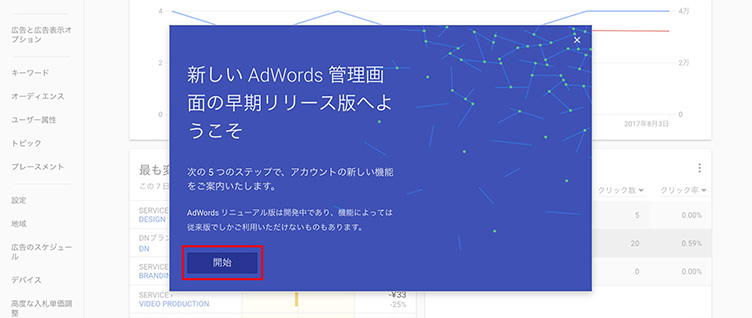
Clicking the "Start" button begins a tutorial for the renewed version.
Follow the guide and proceed through it to see the new AdWords.
The tutorial walks you through everything.
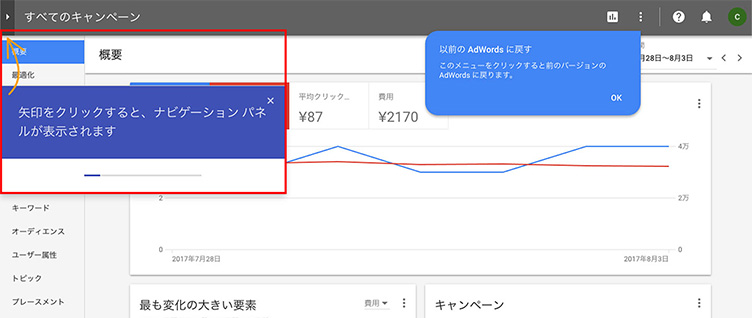
If You Want to Switch Back to the Previous AdWords
This renewed version is still in beta, so some features are not yet available.
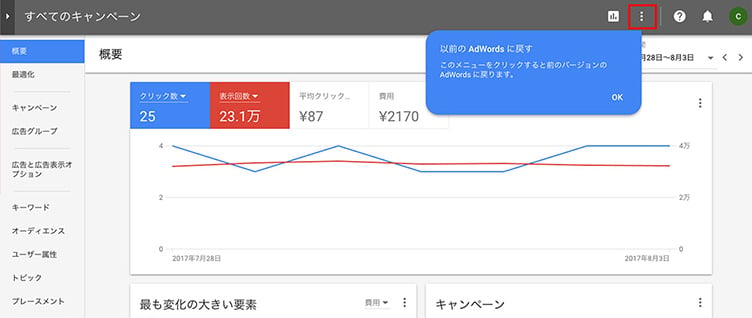
The same features as the previous AdWords will gradually become available, but if you want to switch back to the previous AdWords, you can do so from the menu.
Also, if you want to switch from the previous AdWords to the renewed version, click the gear menu and select "Try New AdWords."
*Features Not Available as of August 21, 2017
- Price extension creation, management, reporting; ad extension (automatic) reports
- Advanced editing (e.g., automation rules, bulk uploads)
- AdWords Labs
- Business data feeds
- Feature downloads on some pages
- Customized display columns
- Drafts and tests
- Location-based reports
- Compatibility: Full compatibility with right-to-left languages; Edge browser support
- Shopping subtype for video campaigns
- Gmail ad subtype for Display Network campaigns
- Custom remarketing/affinity
Renewal Details 2
Switching Between Campaigns and Ad Groups
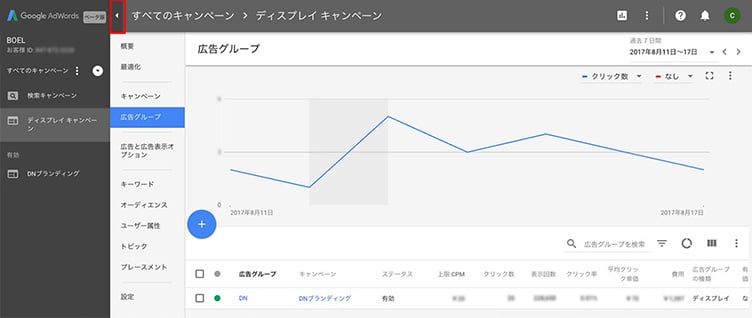
You can switch between displaying campaigns and ad groups using the navigation panel on the left side. If you're using a small screen, the navigation panel is initially hidden.
To open the navigation panel, hover over the left side of the page or click the triangle arrow.
To filter the types of campaigns displayed in the panel, click the More icon in the navigation panel. The filter applies across all admin interface operations.
Switching the Items Displayed on Screen
To switch between items like ad groups, ads, and settings, click the item in the page menu, which is always displayed on the left side.
The items shown in the page menu can change based on what you're currently viewing.
The display changes depending on whether you're viewing the entire account or specific campaigns or ad groups.
Only items relevant to the selected campaign or ad group are shown in the page menu.
Checking Analytics Data
When you first log into AdWords, the Overview page is displayed.
You can check automatically generated analytics data on various items, such as the entire account or specific ad groups.
By changing the date range, selecting specific campaigns, or clicking on details, you can view more detailed analytics.
Creating New Ads
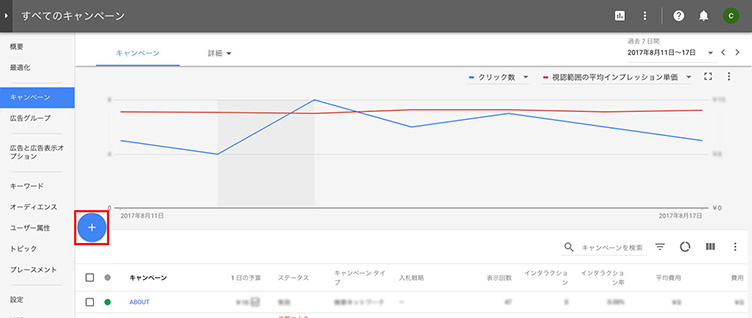
To create campaigns, ad groups, ads, or keywords—and to add settings like target regions and ad schedules—click the item you want to create in the page menu and then click the plus button on the page that appears.
Using Reports
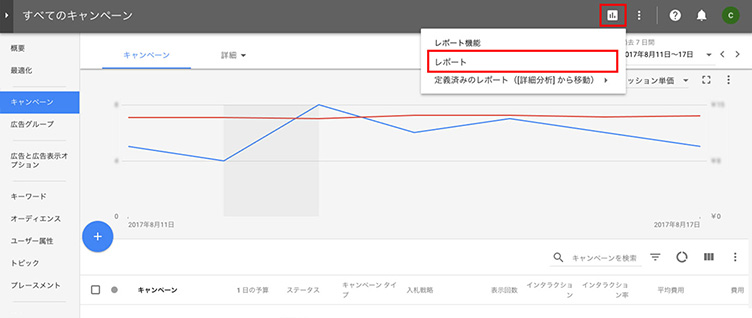
To access performance reports, click the Reports icon in the upper right of your account, then select "Reports" or "Dashboards."
Using Account Tools
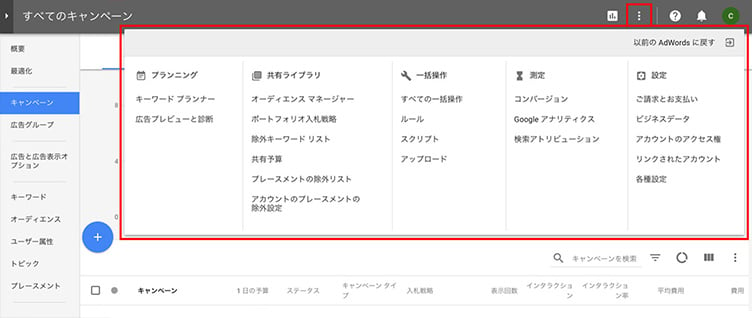
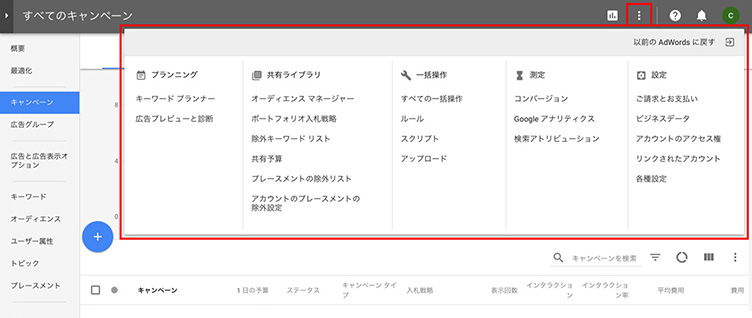
To use various tools for optimizing and planning campaigns, click the More icon in the upper right of your account.
Checking Important Alerts
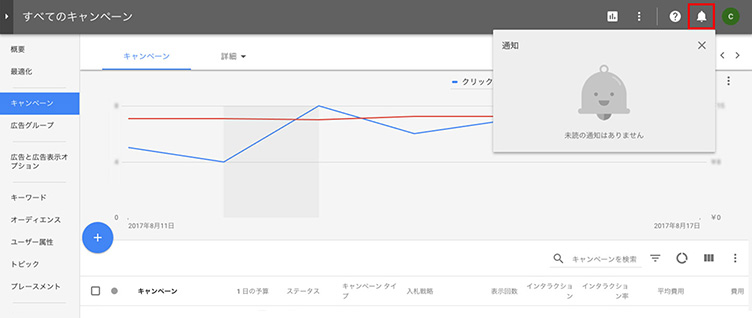
Important account notifications can be checked, as with the previous AdWords, by clicking the bell icon in the upper right of any page in your account.
As of August 21, 2017, to check important notifications and all alerts, please use the previous AdWords.
Managing Payments and Account Settings
To navigate to settings pages for payments, account management, notifications, and so on, click the main More icon in the upper right of your account.
As of August 21, 2017, payments can be opened in a new tab of the previous AdWords.
Once you've completed your settings, close the tab to return to the renewed AdWords.
Sending Feedback
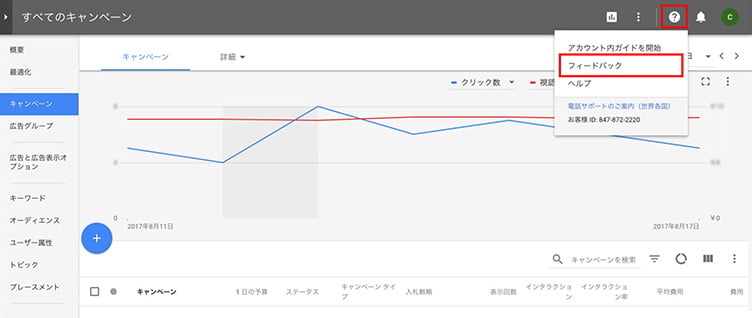
If you'd like to send Google your opinions about the renewed AdWords, click the Help icon in the upper right of your account and select "Send Feedback" to share thoughts about the renewed AdWords's effectiveness and areas for improvement.
The Benefits of the Renewal
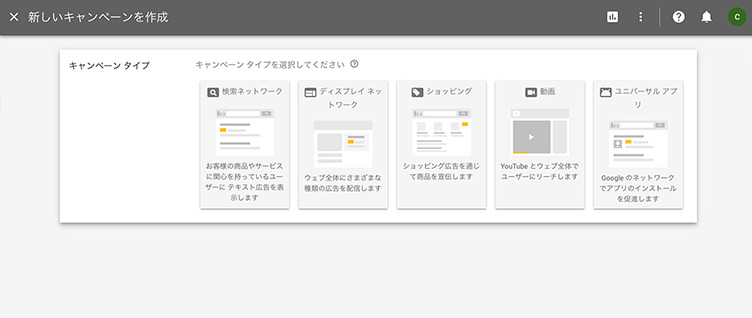
Creating New Campaigns
You can create and improve campaigns tailored to each ad's goals and objectives.
Save time, boost work efficiency, and easily navigate to frequently used features.
Analytics That Help Improve Results
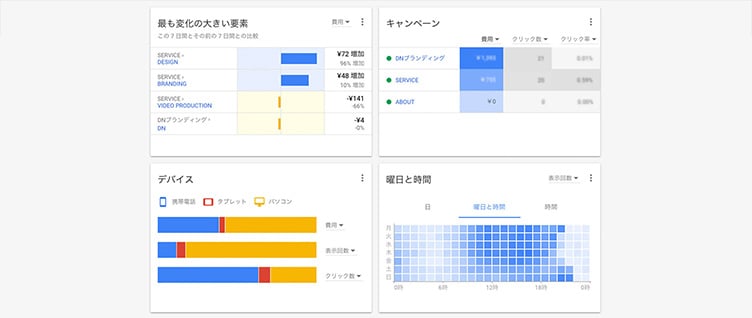
New charts and more advanced reporting features have been added.
Various data is visualized, allowing you to see clearer, more comprehensible reports.
You can also display your preferred items on the Overview page.
Conclusion
This time, we briefly introduced what's been renewed—how was that?
Just by making the admin interface design easier to read, you can work more intuitively.
This not only boosts work efficiency but should also reduce human error.
The interface will continue to change going forward, so be sure to check in regularly.
Source: About the Renewed AdWords
Source: How to Use the Renewed AdWords
RECENT POSTS

Vol.203
What Is Design Management

Vol.202
Why Hiring No Longer Works— Redesigning Organizations and Decisions for an Uncertain Age

Vol.201
How to Choose a Branding Agency: 5 Criteria to Avoid Failure

Vol.200
Design Management: A Practical Guide for SMEs and Startups to Drive Real Results

Vol.199
How to Rebuild Brand Competitiveness: A Practical Guide to Brand Management for SMEs

Vol.198
From parent–child bonds to community: The future of education that nurtures diversity and designs relationships






