TECH
Vol.42

Engineer
Y.M.
Handling Conflicts and Errors: Practical GitHub Workflow Guide
This time, we’ll look at how conflicts occur in different situations, what we learned from using desktop applications in actual workflows, and some useful ways to resolve them using the GitHub Desktop application.
INDEX
What Is a Conflict?
When Does It Happen?
How Can You Resolve It?
Four Common [GitHub](https://github.com?utm_source=chatgpt.com) Workflows That Cause Conflicts
Errors Other Than Conflicts
In the Case of Errors
If Restarting the Application Does Not Resolve the Issue
If Restarting the Computer Still Does Not Resolve the Issue
summary


What Is a Conflict?
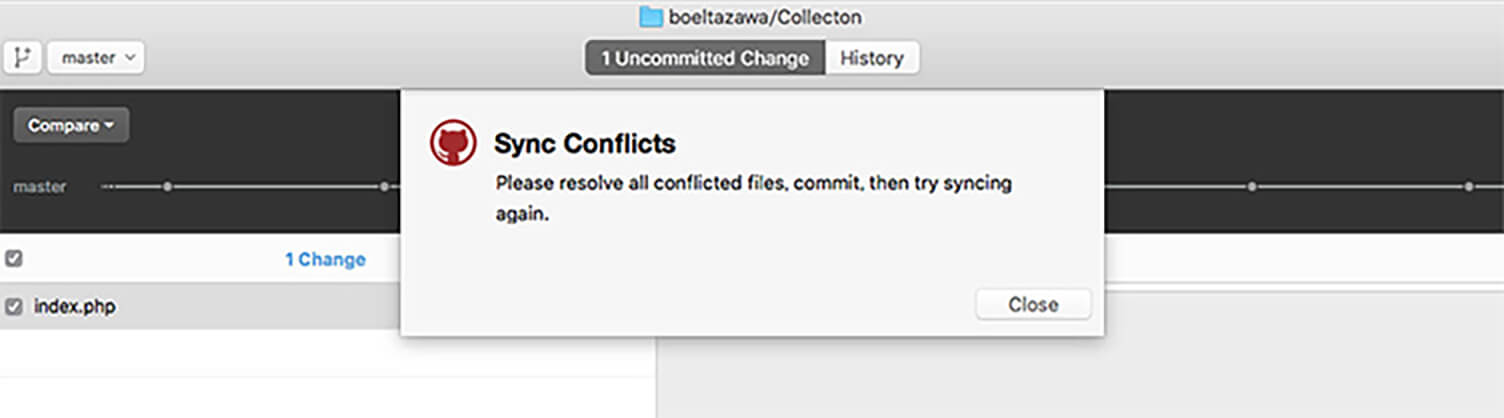
A conflict refers to a “merge conflict” caused by competing changes.
It occurs when multiple people edit the same file and modify the same section, or when the order of the code is significantly changed, making it impossible to merge the changes automatically.
When Does It Happen?
In the case of :contentReference[oaicite:0]{index=0}, conflicts usually occur when pushing committed changes to a :contentReference[oaicite:1]{index=1}.
More specifically, they often happen during the process of committing changes and then performing a “Sync.”
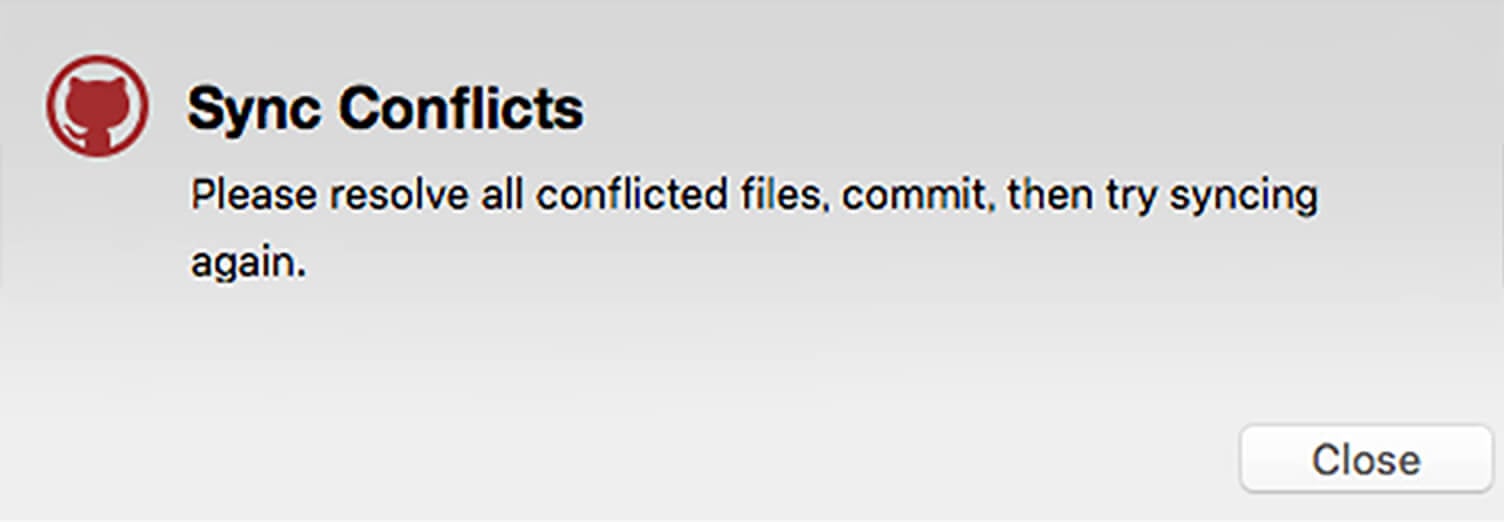
When a conflict occurs, it is displayed in yellow.
How Can You Resolve It?
When this situation occurs, first use “Undo” to cancel the current commit operation, then press “Sync” again.
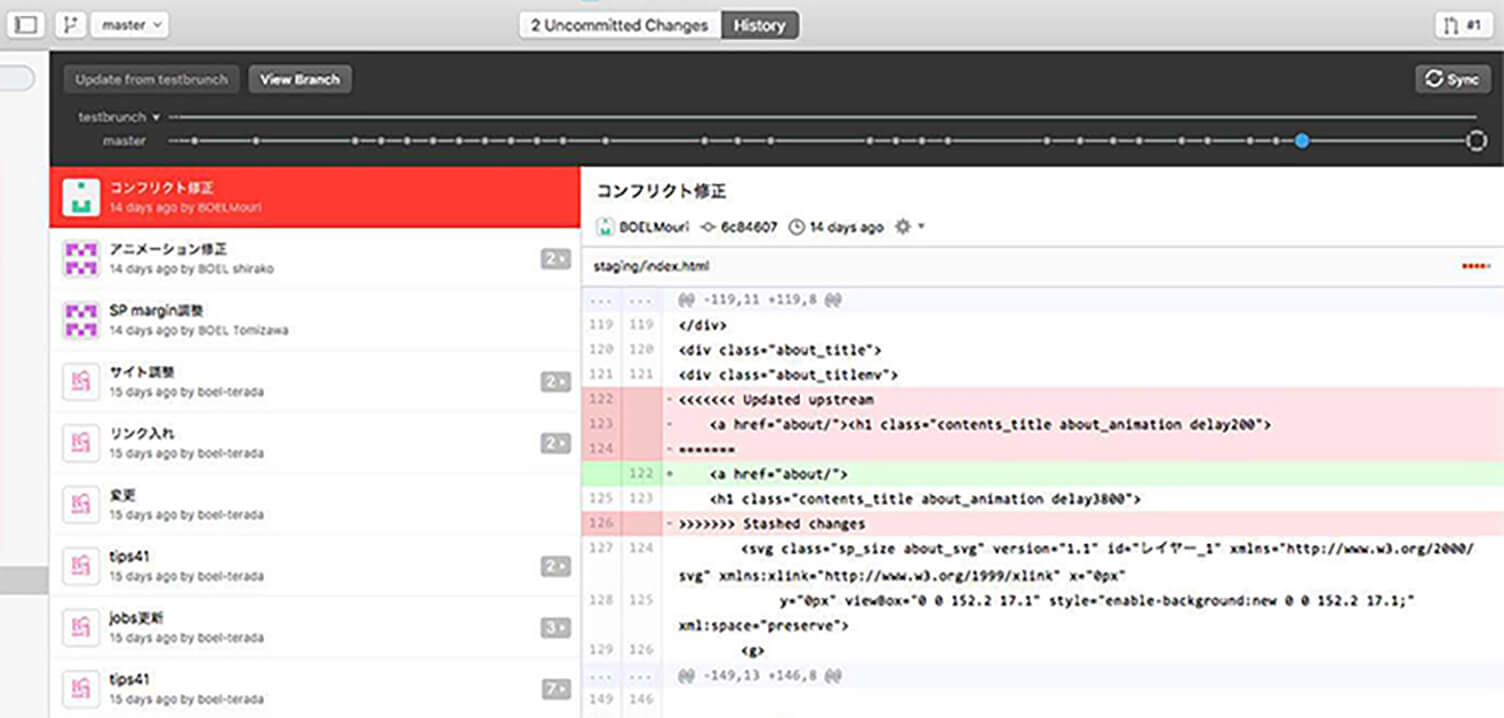
After that, a message like the following will appear inside the file where the conflict occurred.
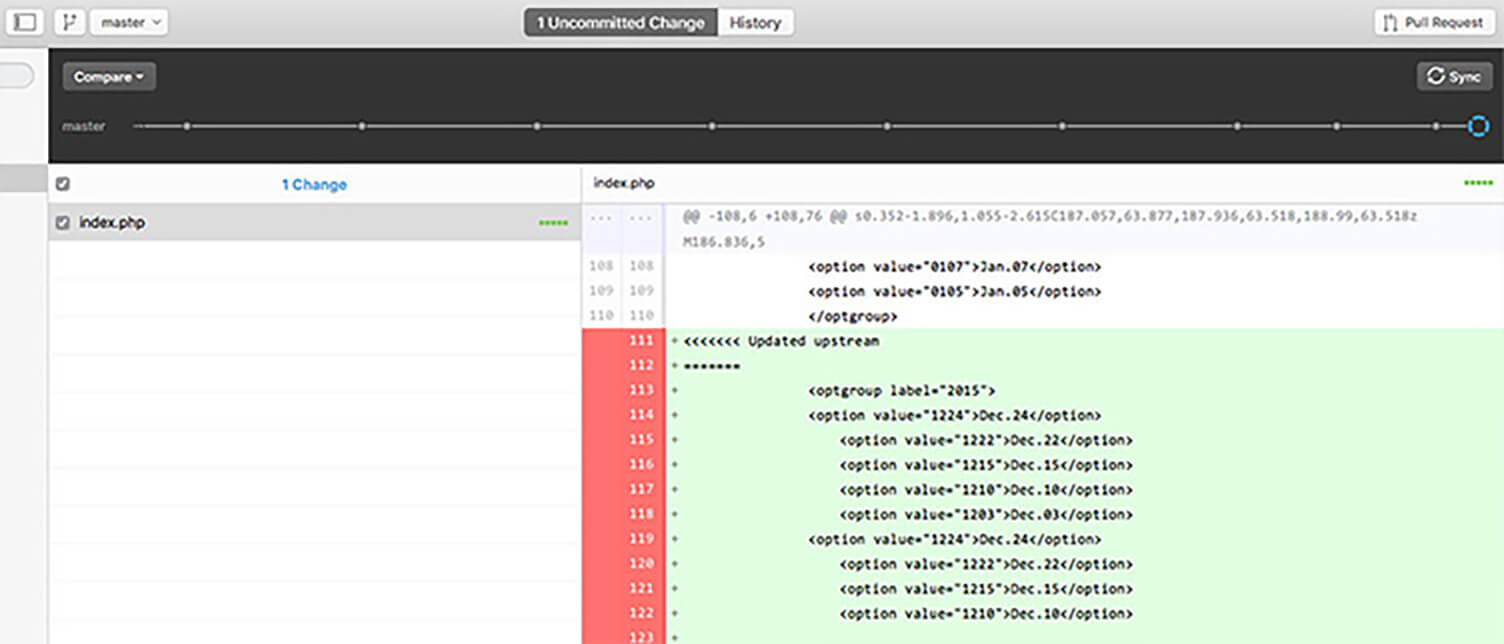
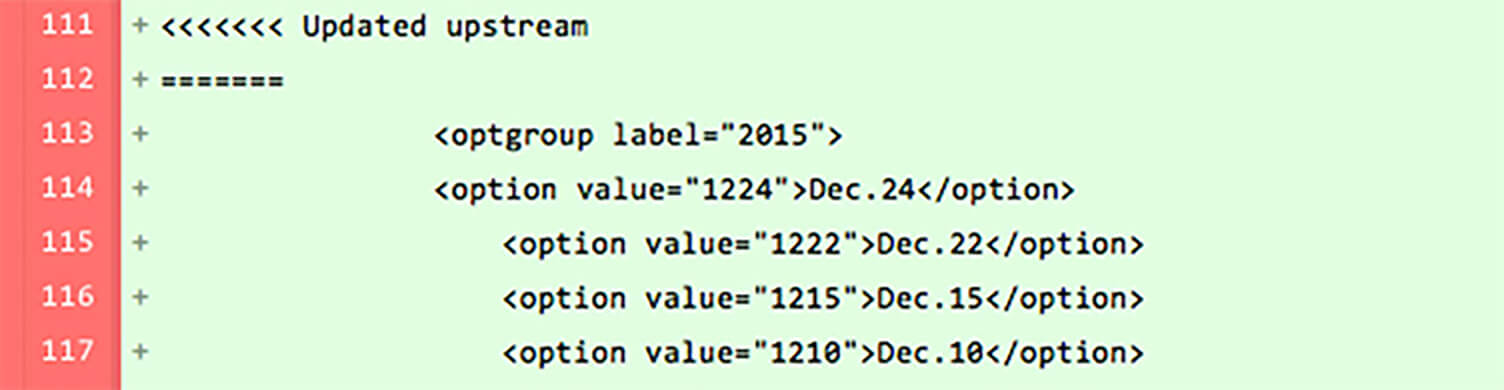
The changes displayed above the ======== line are the changes from the :contentReference[oaicite:0]{index=0},
while the changes displayed below the ======== line are the changes from your :contentReference[oaicite:1]{index=1}—the edits you were attempting to make.
In :contentReference[oaicite:2]{index=2}, the section below the separator is generally shown as your own changes.
You must review the contents and resolve the conflict manually.
If necessary, confirm the intended changes with the person who pushed updates to the remote repository before editing the file.
Once you correct the conflicting sections, you can resolve the conflict by performing “Commit” and “Sync” again.
※ If you commit and push a file containing unresolved conflict markers, the error text itself will be treated as valid data and reflected in the remote repository.
Whenever a conflict occurs, always review the source code carefully and fix it manually.
Be sure to read the messages provided by GitHub carefully.
Four Common [GitHub](https://github.com?utm_source=chatgpt.com) Workflows That Cause Conflicts
Editing Files Without First Updating the Local Repository with the Latest Changes
This often happens when a file has not been edited for a long time or when other editors have already made changes.
If you continue editing without retrieving the latest updates from the remote repository and then perform a “Commit,” conflicts are very likely to occur.
Before starting work, always perform a “Sync” to make sure your local data is up to date.
Editing the Same Section of the Same File at the Same Time

This occurs when multiple people edit the same section of the same source file.
If you can communicate with your collaborators, let them know which parts you will be editing.
If the editing areas overlap, try adjusting the timing of the work to avoid conflicts.
Updating Files Retrieved from a File Server

This can occur when files are retrieved not from the repository itself, but from a live web server or another file server, and then updated.
Although this situation may not happen very often, depending on the server OS, line break codes may change or invisible file information may be modified.
As a result, the files may no longer be exactly identical to the data stored in the GitHub repository.
When Line Break Codes Change
When line break codes change, Git may treat the entire file as modified.
In addition, :contentReference[oaicite:0]{index=0} by itself is generally not recognized.
(If line breaks should be displayed correctly but everything appears as a single line on GitHub, this is often the cause.)
The standard line break formats are:
• CRLF (Windows)
• LF (Mac OS X, Linux, etc.)
Errors Other Than Conflicts
In addition to conflicts, there are also various errors that can occur in desktop applications.
Below is a summary of errors that are relatively common during day-to-day operation and workflow management.
Character Encoding
Today, :contentReference[oaicite:0]{index=0} has become the standard in most environments, but some websites are still operated using :contentReference[oaicite:1]{index=1}.
In :contentReference[oaicite:2]{index=2}, using Shift_JIS may cause garbled text or unexpected behavior.
When Handling Large Files
When pushing very large files or a huge number of files to a remote repository, processing can take a long time and may lead to communication errors or timeout errors.
Part of this depends on the network environment, but it is best to avoid pushing data larger than several gigabytes or thousands of files all at once whenever possible.
If there are many files, it may take a little more effort, but splitting the work into several separate commits can help avoid errors.
Errors Caused by Operational Mistakes or Forced Shutdowns
Applications may encounter errors or become unresponsive in situations such as:
trying to commit very large files and the process not finishing,
performing another operation before an “undo” process has completed,
or retrieving very large files from a remote repository.
In the Case of Errors
If the application becomes unresponsive, force quit it once and then restart the application.
If Restarting the Application Does Not Resolve the Issue
Try restarting the computer that is running the application.
In some cases, canceling processes that were interrupted midway can allow the application to recover properly.
If Restarting the Computer Still Does Not Resolve the Issue
In this case, you will need to delete the local repository data once and then clone the repository again.
1. Close the application.
2. Move the local repository files to the trash and delete them.
※ When deleting, remove the entire folder that contains the cloned repository (hidden files may still remain otherwise).
※ If the files cannot be deleted because they are still in use, or cannot be moved to the trash, restart the computer.
3. After restarting, delete any remaining files. Once deletion is complete, launch the application again and clone the repository once more.
summary
What did you think?
This time, we approached the operation of :contentReference[oaicite:0]{index=0} from a practical, real-world perspective.
Even with these convenient systems, errors and unexpected situations will inevitably occur.
When errors happen, it is important to respond calmly and accurately.
By anticipating these kinds of situations in advance, you can handle them more appropriately without panicking when they actually occur.
Accumulating knowledge and experience is extremely important for smoother and more comfortable development and operations.
By steadily building up practical know-how little by little, you can create a more efficient and reliable workflow.
Reference: Push to a Remote Repository
Reference: Resolving Conflicts
Reference: How to Resolve Conflicts
INDEX
What Is a Conflict?
When Does It Happen?
How Can You Resolve It?
Four Common [GitHub](https://github.com?utm_source=chatgpt.com) Workflows That Cause Conflicts
Errors Other Than Conflicts
In the Case of Errors
If Restarting the Application Does Not Resolve the Issue
If Restarting the Computer Still Does Not Resolve the Issue
summary



RECENT POSTS

Vol.203
What Is Design Management

Vol.202
Why Hiring No Longer Works— Redesigning Organizations and Decisions for an Uncertain Age

Vol.201
How to Choose a Branding Agency: 5 Criteria to Avoid Failure

Vol.200
Design Management: A Practical Guide for SMEs and Startups to Drive Real Results

Vol.199
How to Rebuild Brand Competitiveness: A Practical Guide to Brand Management for SMEs

Vol.198
From parent–child bonds to community: The future of education that nurtures diversity and designs relationships


