TECH
Vol.143

N.U.
Inquiry Form & Admin Tool: Automating the Connection


Three types of system integration
Here’s how we organised our system:
1. A user submits the contact form on our website (Trigger)
• Status: Success or Failure
• Input contents
↓
2. Automatically post to Slack (acts as a monitoring tool)
↓
3. Accumulate the submission contents in a Google Sheets spreadsheet (acts as a database)

At BOEL, we had already implemented steps 1 and 2 (form → Slack).
To accumulate the input data, we wanted to also implement form → Google Sheets (step 3), but faced several issues and progress was slow. After trial and error, we achieved our original goal by linking Slack (step 2) with Google Sheets (step 3).
Because the method of linking the systems is introduced on many websites, this article focuses on key points and pain points encountered.
Linking the contact form and Slack
We use Slack as our communication tool.
If we are to manage whether a form submission succeeded or failed, it’s convenient to receive a notification in a tool we use daily.
Therefore, when a submission is made on our website, we created a mechanism that automatically sends a notification to Slack.
The notification message is structured like this:
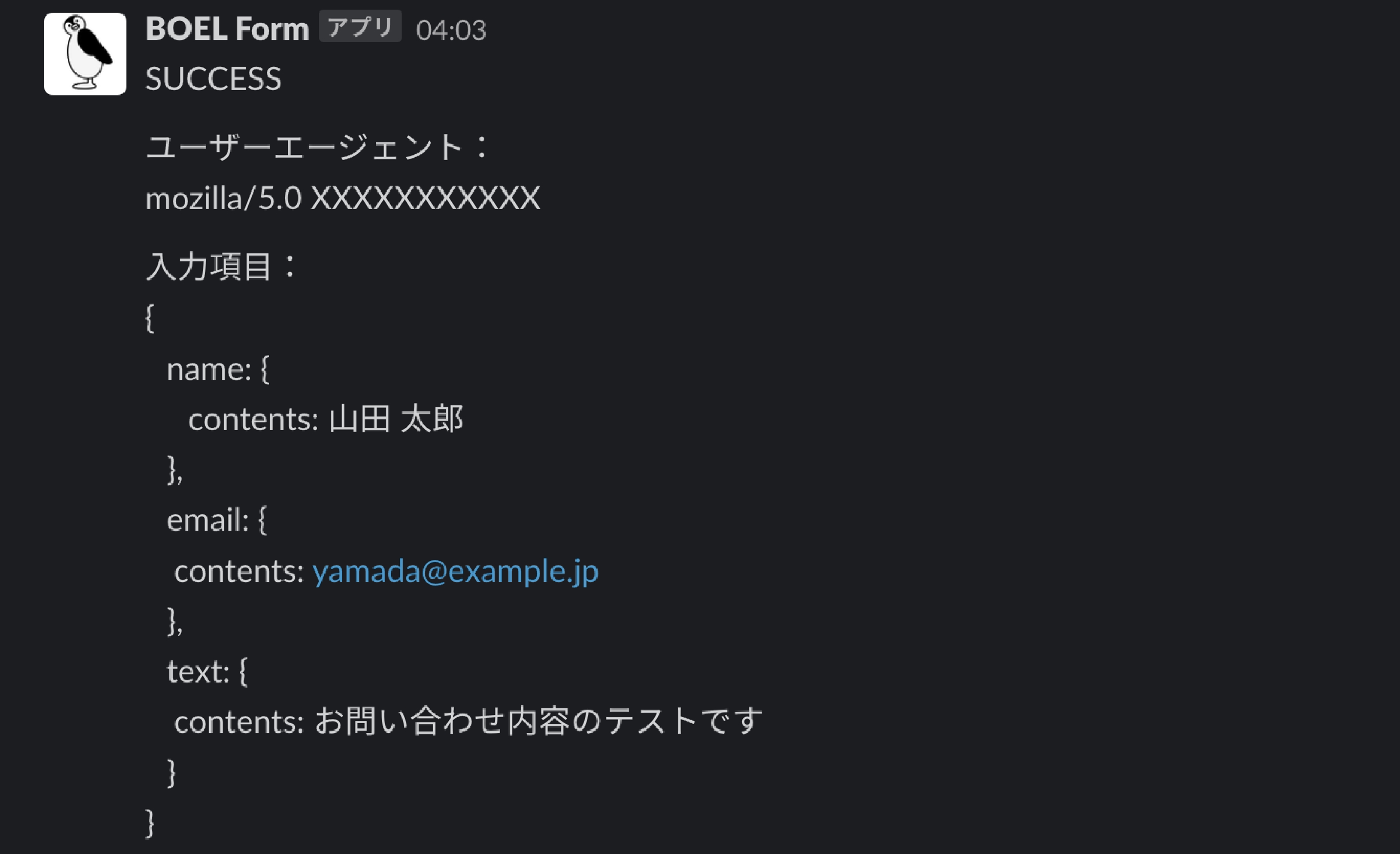
• (example image: Slack success notification)

• If there is a send-error, we set the beginning of the message like this:
(example image: Slack failure notification)
To detect submission failures early, we make a special address setting for failures and apply noticeable text formatting.
The notification to Slack is for “status management + log capture,” so we post the JSON input data from the website without further processing.
Implementation method on the site: We used Slack’s Incoming Webhook .At the time the form is submitted, the input content is POSTed to Slack.
Linking Slack and Google Sheets
Slack side setup
To link Slack and Google Sheets, we used the Slack Event APIand triggered an event at the timing of a Slack notification.
We added additional settings to the Slack App that we configured in step 2.
Google Sheets side setup
We created a tool using Google Apps Script that takes the data received from Slack, processes it, and registers it into a management sheet. We used regular expressions to extract only the items we wanted and stored them in the table.
Here’s what our management sheet looks like: (image of the sheet)

In summary
If you like, I can also prepare a bilingual version (Japanese + English) of the article or a simplified summary for your team. Would you like me to proceed with that?
RECENT POSTS

Vol.203
What Is Design Management

Vol.202
Why Hiring No Longer Works— Redesigning Organizations and Decisions for an Uncertain Age

Vol.201
How to Choose a Branding Agency: 5 Criteria to Avoid Failure

Vol.200
Design Management: A Practical Guide for SMEs and Startups to Drive Real Results

Vol.199
How to Rebuild Brand Competitiveness: A Practical Guide to Brand Management for SMEs

Vol.198
From parent–child bonds to community: The future of education that nurtures diversity and designs relationships






