ILLUST
Vol.23

Designer
M.N.
Photo retouching you can do with a pen tablet


Use a pen tablet for local photo retouching
Selection tools are easier to use
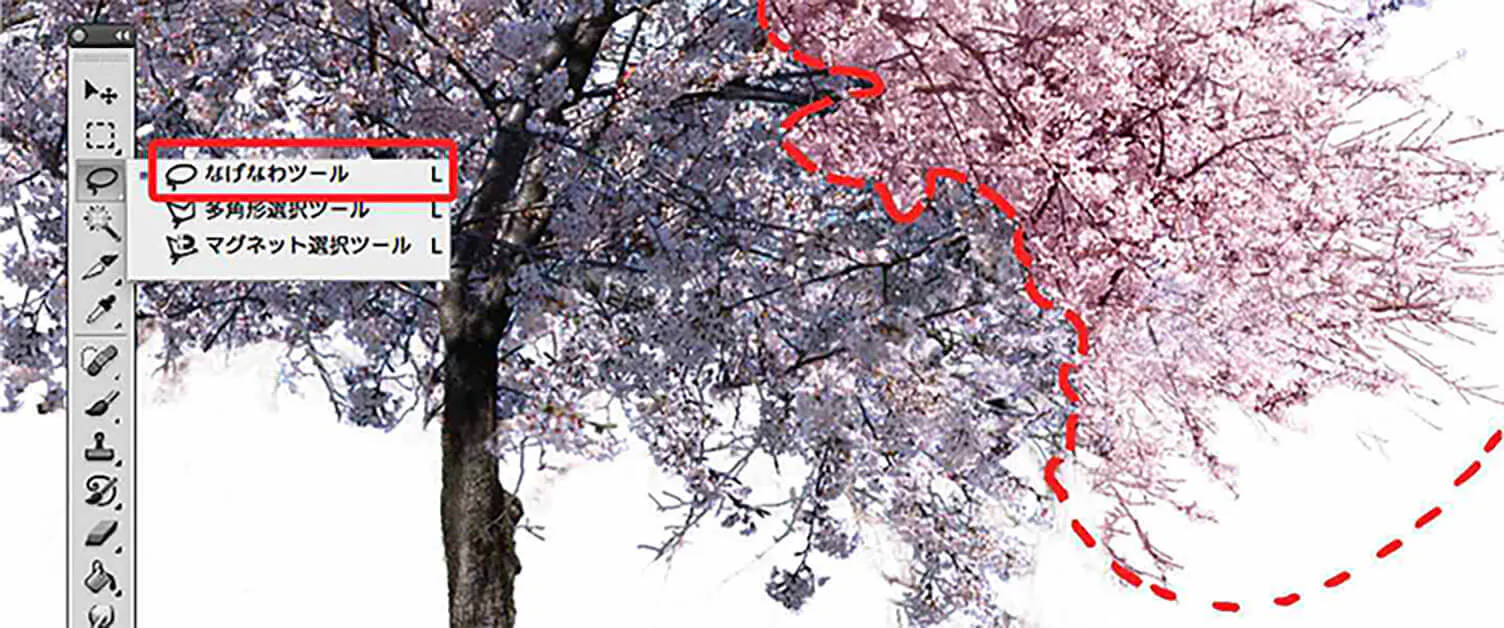
This time, I used a Wacom Intuos5 for photo retouching.
The Intuos5 includes new features such as touch input with fingers, and its accuracy has improved significantly.
I previously used Wacom’s “Bamboo,” but the sensor precision has greatly improved since then.
Recently, both image resolution and pixel counts have increased, and devices such as monitors and printers that output them have also evolved rapidly.
In other words, higher precision and quality are now required more than ever.
When retouching images, applying adjustments to the entire image can sometimes result in overexposed areas or color shifts, causing an unbalanced look.
In such cases where you want to adjust only specific parts, a pen tablet becomes very useful.
When using tools like the lasso tool or masks to select only necessary areas, a pen tablet allows you to make selections smoothly, just like drawing with a pencil.
Use brushes to composite images
Fine control for localized adjustments

Use the brush tool to apply masks to fine details.
The key advantage over a mouse is that a pen tablet allows pressure sensitivity when using brushes.
By enabling pen pressure, you can subtly vary the brush size depending on how hard you press, allowing for more precise masking.
It is also convenient for adding small details, as it feels just like drawing with a pencil.

When adding lines, a default hard-edged brush can make the result look unnatural or out of place.
In this case, for compositing plants, we used a brush with a jagged outline and ink bleed effect, created in Vol. 4: Various Uses! How to Create Brushes.
For softly blended edges, we first apply a mask with the same brush and then use the smudge tool to blend it in.
For the grass, we finally added a few thin strokes along the edges to create a softer, more natural impression.
Improve efficiency by using features
Zoom in and out using the touch sensor
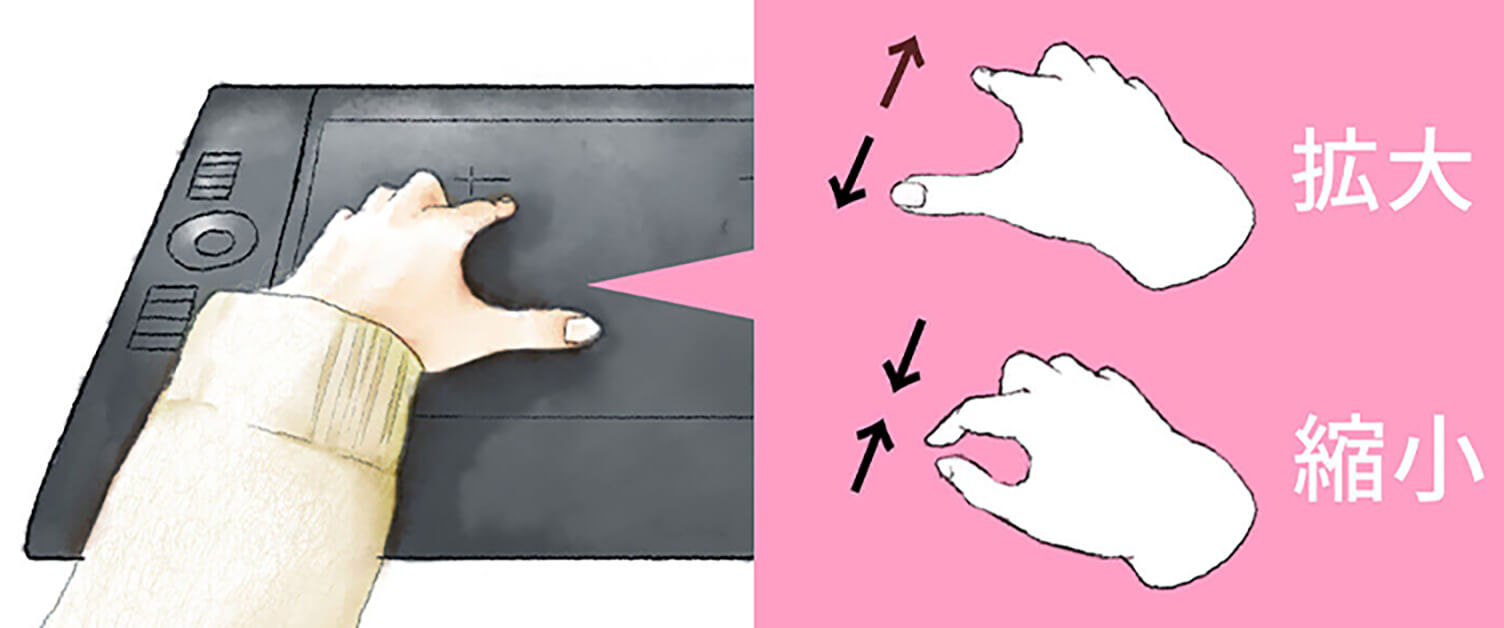
In photo retouching work, it is common to repeatedly zoom in to remove dust and small imperfections, and then zoom out to check the overall balance of the image.
With the Wacom Intuos5 series, touch functionality was added, allowing users to zoom in and out on the tablet surface just like using a smartphone.
This enables you to adjust the preview size with your non-dominant hand without putting down the pen.
By working without having to set the pen aside, unnecessary movements can be reduced compared to using a mouse.
Customize function keys and the touch wheel
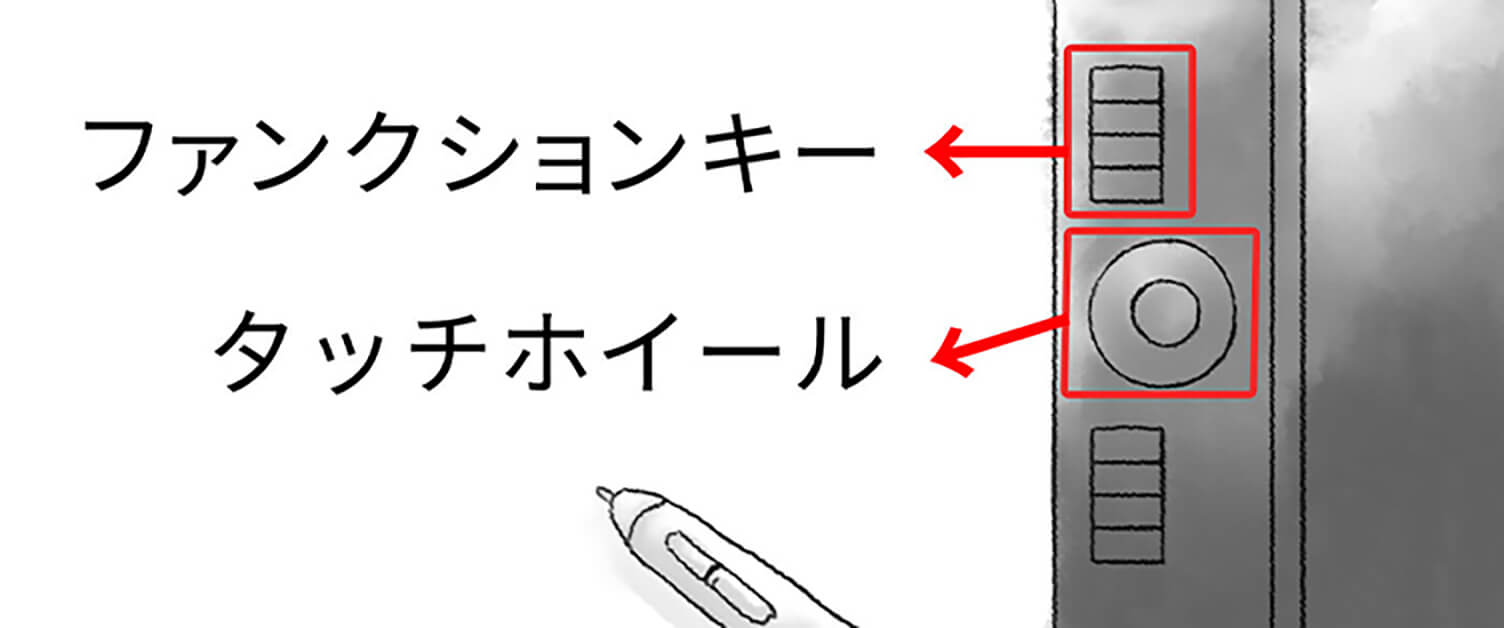
The function keys are the square buttons located on the left side when using a right-handed setup, while the touch wheel is the circular control.
By sliding your finger clockwise on the touch wheel, you can zoom in and out of the image.
The function keys can be customized, allowing you to assign frequently used shortcuts or applications.
For retouching work, it is recommended to set functions such as “Undo” or the “Healing Brush” for quick access.
How to set up function keys
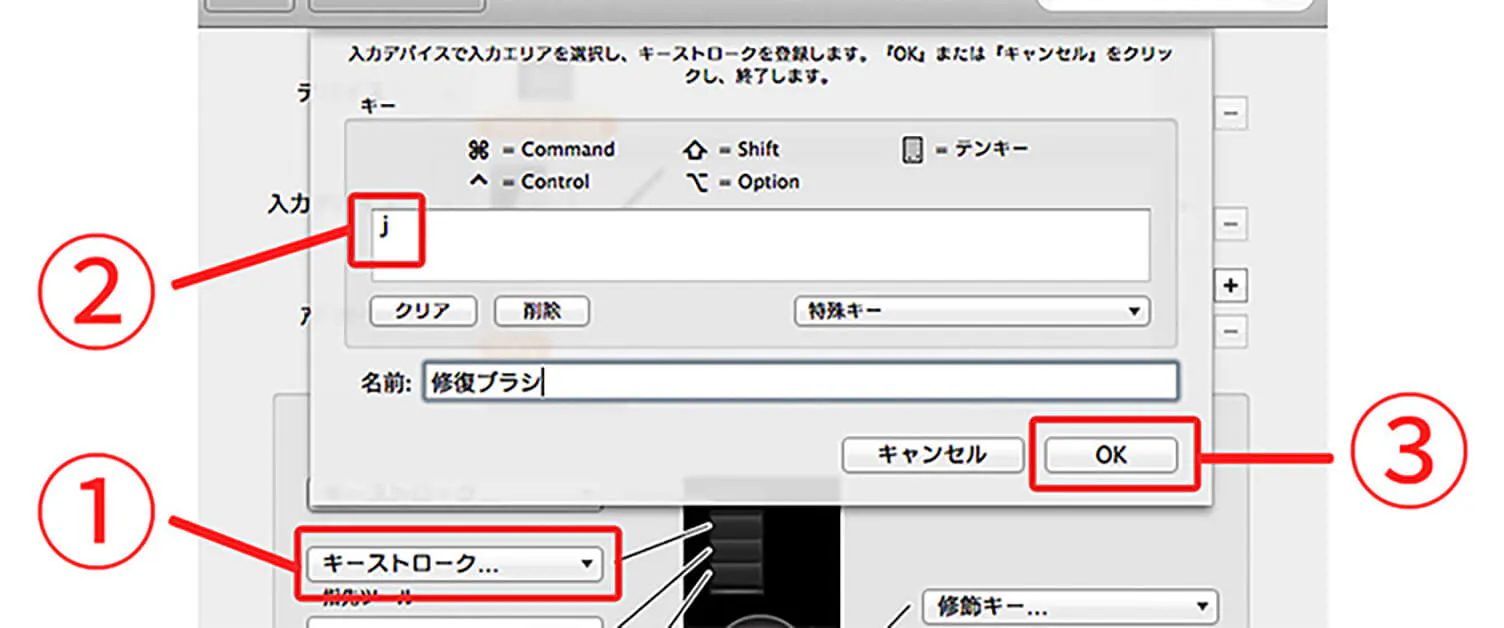
Function keys can be configured from “Preferences” under “Wacom Tablet,” then selecting “Functions.”
1: Choose the desired setting from the configuration screen.
2: If you want to assign a tool such as the Healing Brush, select “Keystroke” and enter the corresponding shortcut key for the tool.
3: Click “OK” to save the settings.
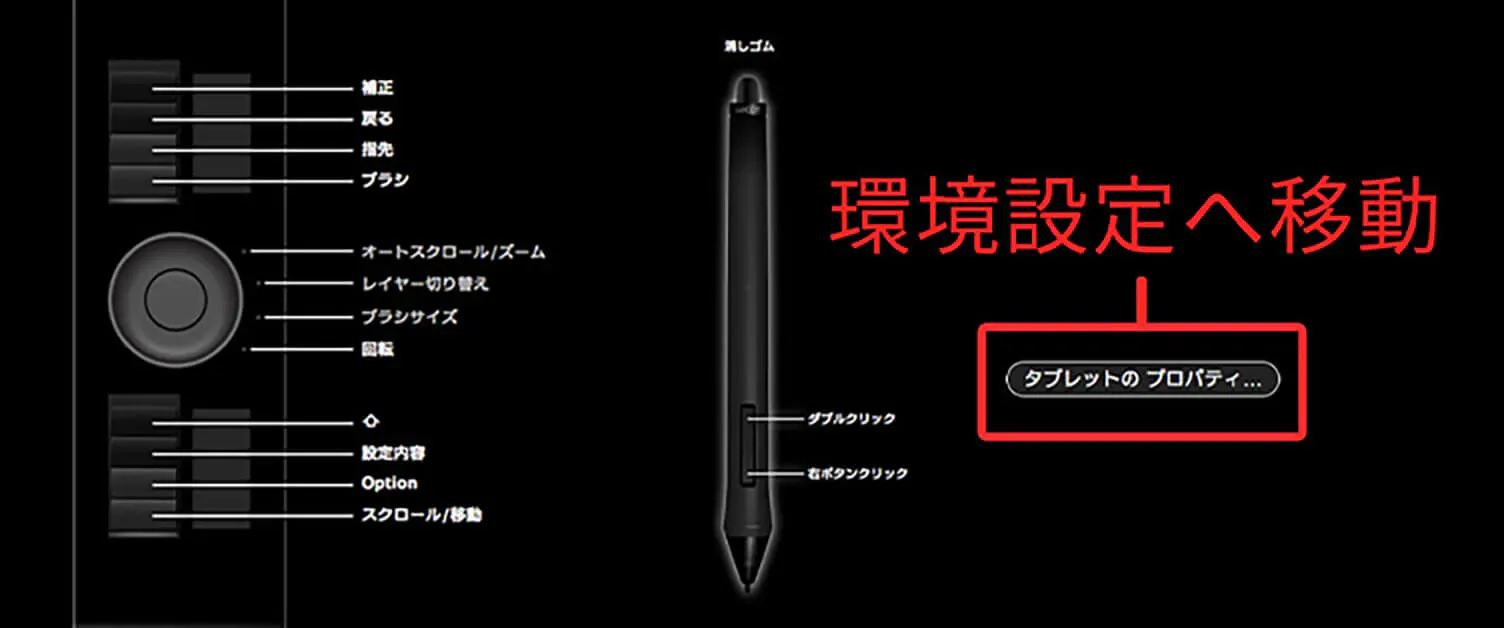
You can also display your configuration details on the screen by adding them to the function key settings.
Clicking “Tablet Properties” will quickly open the preferences window.
In the latest Intuos5 models, you can also open it by long-pressing the function key.
Summary
In retouching work that requires fine detail, being able to work quickly and smoothly—just like using a pencil—helps save time.
As shown in this article, a pen tablet can be adapted to many types of work depending on how you customize it, so it is best to set it up in a way that makes your workflow as smooth as possible.
RECENT POSTS

Vol.203
What Is Design Management

Vol.202
Why Hiring No Longer Works— Redesigning Organizations and Decisions for an Uncertain Age

Vol.201
How to Choose a Branding Agency: 5 Criteria to Avoid Failure

Vol.200
Design Management: A Practical Guide for SMEs and Startups to Drive Real Results

Vol.199
How to Rebuild Brand Competitiveness: A Practical Guide to Brand Management for SMEs

Vol.198
From parent–child bonds to community: The future of education that nurtures diversity and designs relationships






